It’s really easy to connect your Tripcatcher account with Dext. In a few steps, you can be completely set up and ready to publish your mileage directly to Dext through your Dext email service.
Log in to your Tripcatcher web account and follow the instructions below:
1. Go to Settings
Click on the Settings menu item.

2. Connect to Dext
Ensure the ‘Dext’ button is selected as the software you want to publish your mileage expenses to.
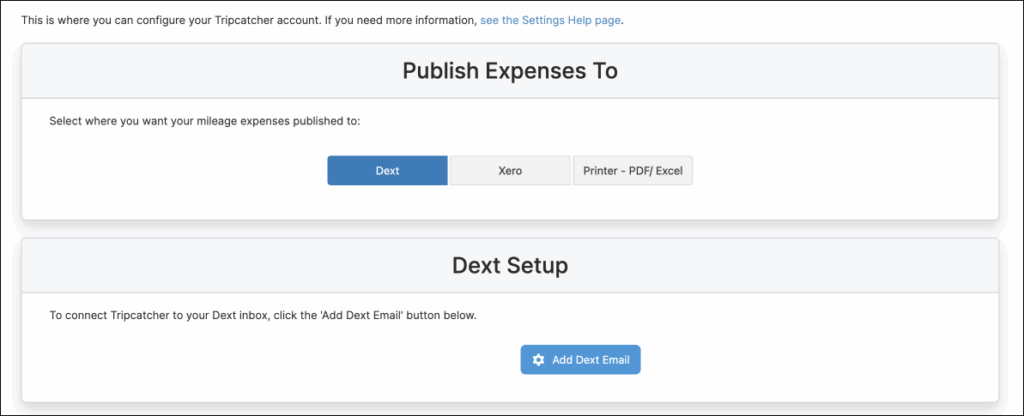
Click the ‘Add Dext Email’ button in the Dext Setup Box; this will open a pop-up where you enter your Dext email address and other integration options.
3. Dext Setup
The configuration popup, shown below, allows you to enter your Dext extraction email address and choose how you want your trips published to Dext
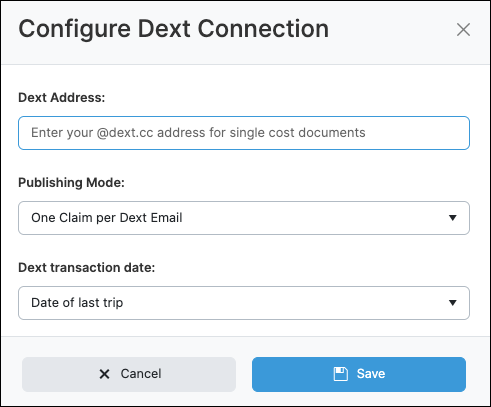
Enter your Dext extraction email address; this is the email address ending in @dext.cc. If you don’t know your Dext extraction email address, you can find it in your Dext account.
The Publishing Mode and Dext Transaction Date explained in section 4. below, are set to the Tripcatcher defaults, and can be changed easily by clicking on the dropdown arrow to the right of the box.
4. Publishing Mode and Dext Transaction Date
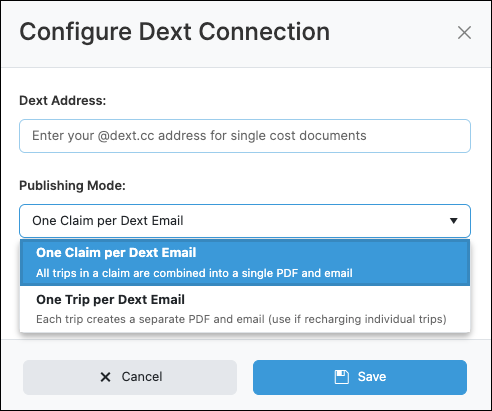
Publishing Mode: There are a couple of options when publishing mileage to your Dext account. Mileage can now be published to Dext either as One Trip per Dext Email (useful if recharging mileage costs to customers), or One Claim per Dext email, where all the trips are grouped into a single Dext email (especially useful if your Dext account has a monthly extraction limit).
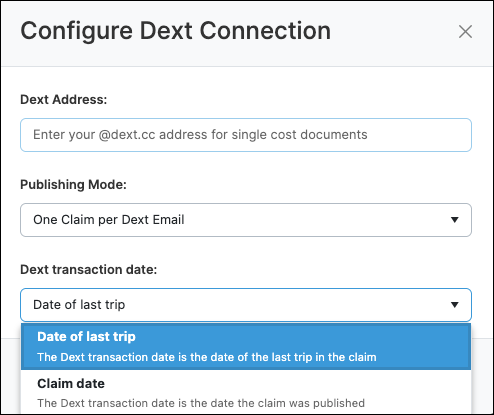
Dext Transaction Date: If you select One Claim per Dext email, you can choose the date of the Dext transaction entry; this can be the date the claim is published, or it can be the date of the last trip in the claim. This becomes important if you need to allocate the expenses to the correct month, i.e., to claim VAT back sooner and in the correct quarter.
Once all configuration details are set, click the ‘Save’ button. You are now ready to publish your mileage to Dext through your Dext inbox email address.
5. Edit and Disconnect Features
Once the Dext connection is set up, you can edit the details by clicking the ‘Edit’ button. You can also disconnect the current connection by clicking the ‘Disconnect’ button.

If you have any issues or questions about this integration with Dext, please get in touch at support@tripcatcherapp.com.