If you’re a Tripcatcher Partner or Admin user, the instructions below apply to you; if not, here are the Dext instructions for you.
As a Partner or Admin user, you need to connect all your client/employee users who publish mileage to Dext. Connecting a client or employee’s Tripcatcher account with Dext only takes a few steps.
The first step is to login to your Tripcatcher Partner (or Admin) account and follow the instructions below:
1. Go to Integrations
Click the Integrations menu.

2. Dext Connections Table
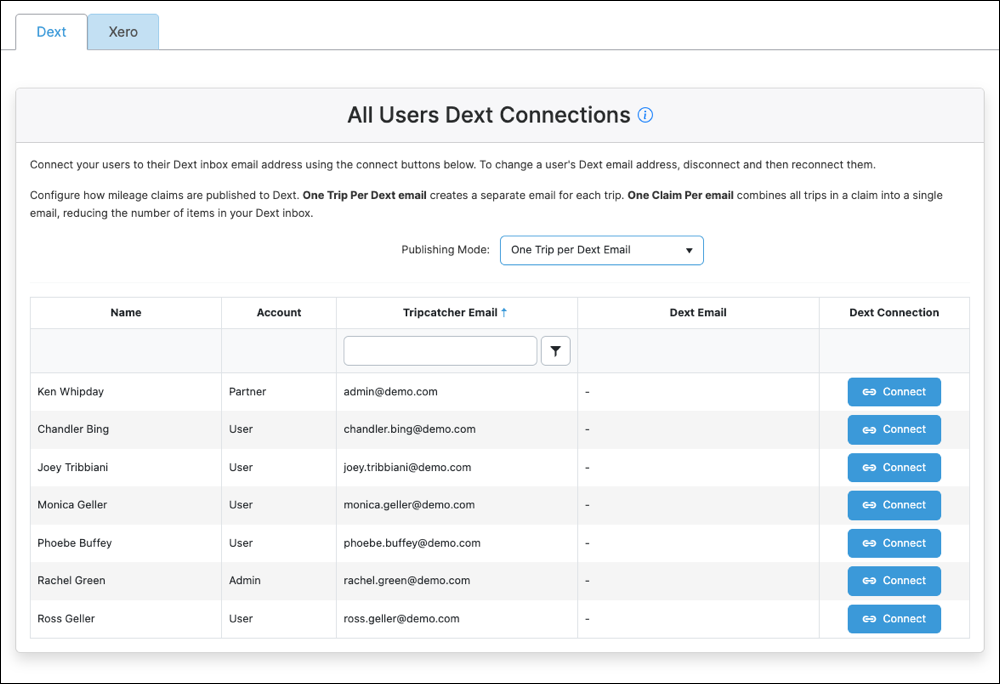
The Dext connection information, for all users set to publish to Dext, is displayed in the All Users Dext Connections table, on the Integrations page.
3. Connect User
This Integrations table allows you to enter the user’s Dext inbox email address (@dext.cc). Click the Connect button in the Dext Connection column. This will open a pop-up box where you can enter the user’s Dext email address.
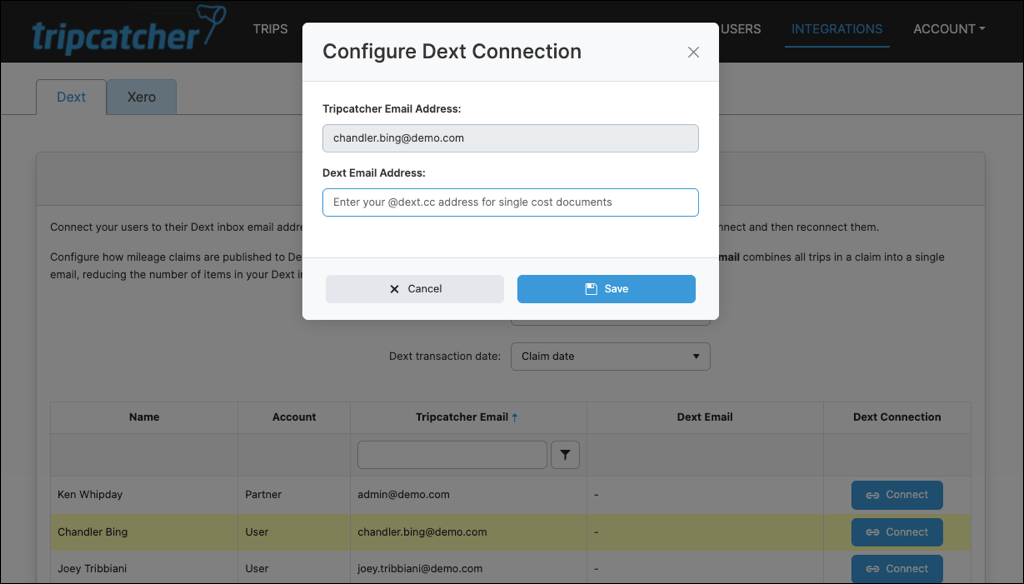
Enter the user’s Dext inbox email address for single-cost entries; this email address ends with dext.cc. Next, click the ‘Save’ button, and the configuration is complete.
If you need to change the user’s Dext email address, click the ‘Disconnect’ button for the user, then click the ‘Connect’ button, and re-enter the email address.
4. Integration Options
At the top level (for all users of the account), mileage can now be published to Dext either as individual trips (useful if recharging mileage costs to customers).

Or grouped in a single claim, resulting in a single entry in the Dext inbox (especially useful if your Dext account has a monthly extraction limit).

If you select to publish all trips in a single claim, you can choose the date of the Dext transaction; either the date of the claim, i.e., when published or the date of the last trip in the claim. This becomes important if you need to allocate the expenses to the correct month, i.e., to claim VAT back sooner and in the correct quarter.
5. Set Up Dext Integration on Invite
You can set up the Dext integration information when you invite a user to join your Tripcatcher account. The Add User form now includes a field for the user’s Dext inbox email address (@dext.cc).
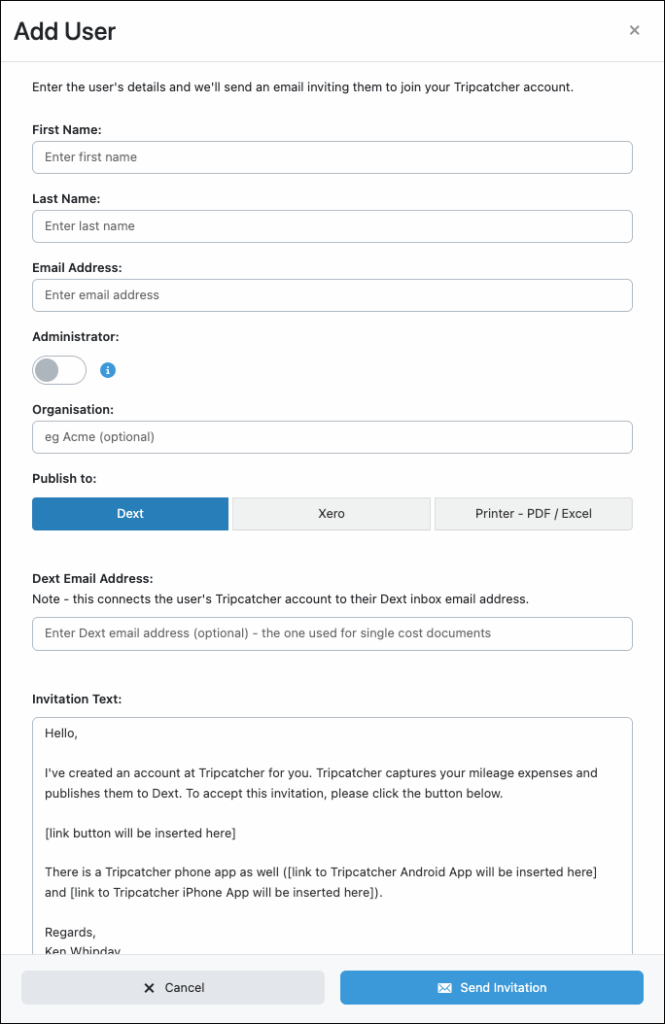
When the user activates their account, their Dext email address is automatically added to the Dext Integrations table, making onboarding easier.
If you have any issues or questions about this integration with Dext, please contact support@tripcatcherapp.com.